
Journal
Make a digital kit easy to open and use
Build a clear first-use route through masters, examples, permissions and version notes, then audit the delivered package.
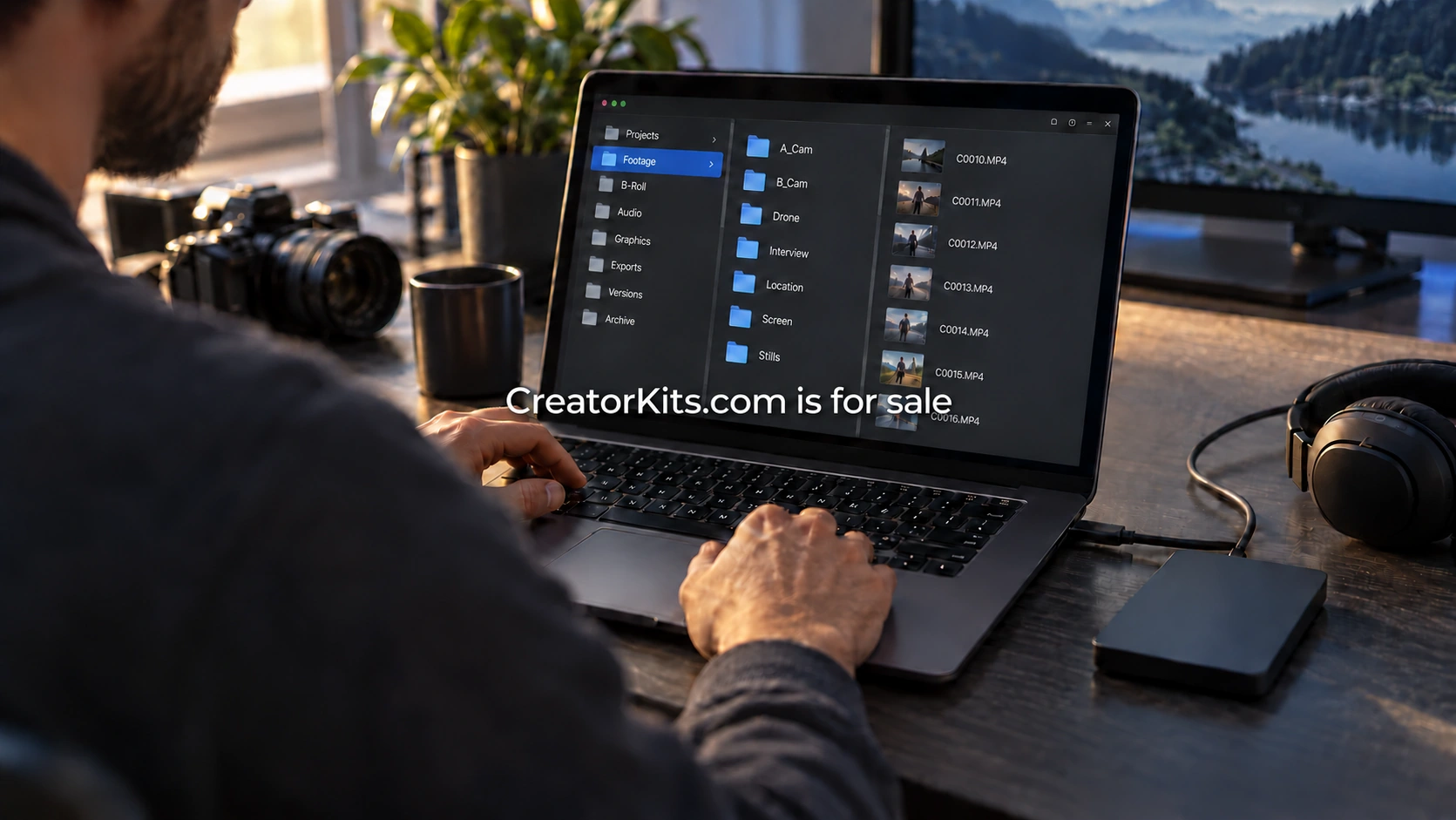
A digital kit starts working when its buyer can find the first file, understand what it is for and reach a useful result. A large download with polished covers can still be difficult to use if the files have vague names, the examples resemble blank masters or the instructions assume the author is available to explain everything. The file arrangement deserves the same care as the templates inside it.
Map the journey before making folders
Write the user’s route on a single page. For an interview-production kit, it might be: read the start guide, copy a briefing template, prepare the episode, record review decisions, then collect the final delivery files. Each stage should have an obvious input and output. This helps you decide whether a file belongs in the kit and where it should appear.
Do not begin by sorting everything you have already created into attractive categories. That can preserve unnecessary material simply because it exists. Start with the job, then add only the files that help someone do it. A folder named “Bonus Resources” is not a substitute for deciding when a resource becomes useful. If a file has no clear place in the route, consider leaving it out of the first release.
Give the root folder a clear entrance
A practical first structure could contain “00 Start Here,” “01 Make Your Copy,” “02 Work Through the Episode,” “03 Review and Deliver,” and “Examples.” The numbers show an intended sequence. The words explain the purpose. The exact names can vary, but the user should not have to open five folders to discover which one contains the instructions.
Keep the start guide near the root rather than inside an archive of documentation. It should say what the kit helps complete, what applications or accounts are needed, how to create working copies and where to ask a product question. Include a short contents list with links or exact filenames. A buyer opening the download after several weeks should be able to recover the route without remembering the original product page.
Separate blank masters from completed examples
A master template should be clearly labeled as the file to copy. A sample should be clearly labeled as an example to inspect. Do not rely on a different cover color to distinguish them. Include the word “Example” in the filename and near the top of the document. Use fictional data that cannot be mistaken for a real customer project or confidential brief.
For example, a file called “Episode Brief Template” could sit beside “Example Episode Brief, Desk Setup Interview.” The sample shows the level of detail expected in each field. A short note explains why a vague answer would be difficult for the next person to use. The blank master then gives enough prompting to start without carrying several pages of demonstration text into every new episode.
Name files for the person receiving them
Choose names that remain meaningful outside their folders. “Checklist-final-new” tells a collaborator little when it arrives as an attachment. “Episode Delivery Checklist v1.1” explains both purpose and version. For a working project, a campaign or episode identifier can be added according to the team’s convention. Document the convention with one example rather than requiring users to infer it from a pile of files.
Avoid putting every detail in the filename. A long chain of dates, initials and status labels can become hard to scan. Decide which information belongs in the name and which belongs in a document header or change log. The goal is reliable identification. A file should be distinguishable from its neighbors and traceable to the version the user intended to use.
Explain formats and dependencies
List the supplied formats and the applications used to check them. State whether a file is editable, a reference copy or an export. If a spreadsheet contains formulas, show one small completed example and describe which cells are intended for entry. If a document depends on a font, extension or external asset, explain how the user obtains it and whether it is included in the purchase.
Give the core instructions in a format that can be read without playing a video. A short walkthrough can help, but it should not be the only place where a required setting or copying step appears. A plain-text summary can be useful for quick reference. Test the supplied exports, because a correct source document does not prove that its exported version preserves headings, links or usable layout.
Use structure that supports navigation
Long instructions need descriptive headings in a logical order. W3C’s page-structure tutorial explains the value of meaningful regions and nested headings for navigation. In a kit guide, this can mean sections called “Prepare a working copy,” “Record review decisions” and “Package the final files.” Those labels give a reader a concrete route through the task.
Use real heading styles when the format supports them, rather than making ordinary text large and bold. Give links descriptive labels so a user can understand their destination. Keep an instruction close to the field or step it explains. These are useful design practices, but they do not amount to an accessibility certification. Review the actual files with the intended users and consider needs that the initial sample may not represent.
Check shared links from the receiver’s side
A digital kit may use hosted templates or a shared example folder. Check those links from an account with the access level a customer will have. The author’s account often has permissions that conceal a problem. A successful click by the owner is therefore not enough to establish that the delivery route works for a new buyer.
For Google Drive materials, Google’s sharing documentation distinguishes viewing, commenting and editing and explains inherited folder permissions. Use that guidance to check the actual arrangement. A copyable master, a review document and an upload destination may need different access. Keep private working material outside a broadly shared folder, and account for restrictions that a customer’s organization may apply.
Publish a version note users can act on
Place a version identifier and date in the start guide. Keep a short change log that describes practical changes: a renamed folder, a corrected formula, a revised approval step or a new supported format. Tell existing users whether they should replace a file, copy a section into their current work or simply refer to the updated instructions next time.
Avoid silently replacing a master when the change could affect ongoing work. A customer may already have modified the previous version. Clear release notes let that person decide how to adopt the change without discarding their project. Keep archived versions out of the default opening path, while retaining whatever internal record is needed to understand earlier support questions.
Audit one complete first-use journey
Hand the delivered package to someone who has not seen it. Ask them to locate the start guide, make a working copy and complete the sample task. Watch for the first wrong turn. Do they edit the example, open the archive, request access or look for a missing file? Record what happened before explaining the intended route.
Then make a small, specific repair and repeat the affected step. Renaming a folder may solve a navigation problem more effectively than adding another paragraph. Removing a redundant template may make the package easier to understand. The final test is practical: a first-time user can identify the next action and carry useful work from one file to the next. Start there before expanding the library.
A name for what comes next
Make CreatorKits.com your next move.
Explore an acquisition or discuss a partnership.